
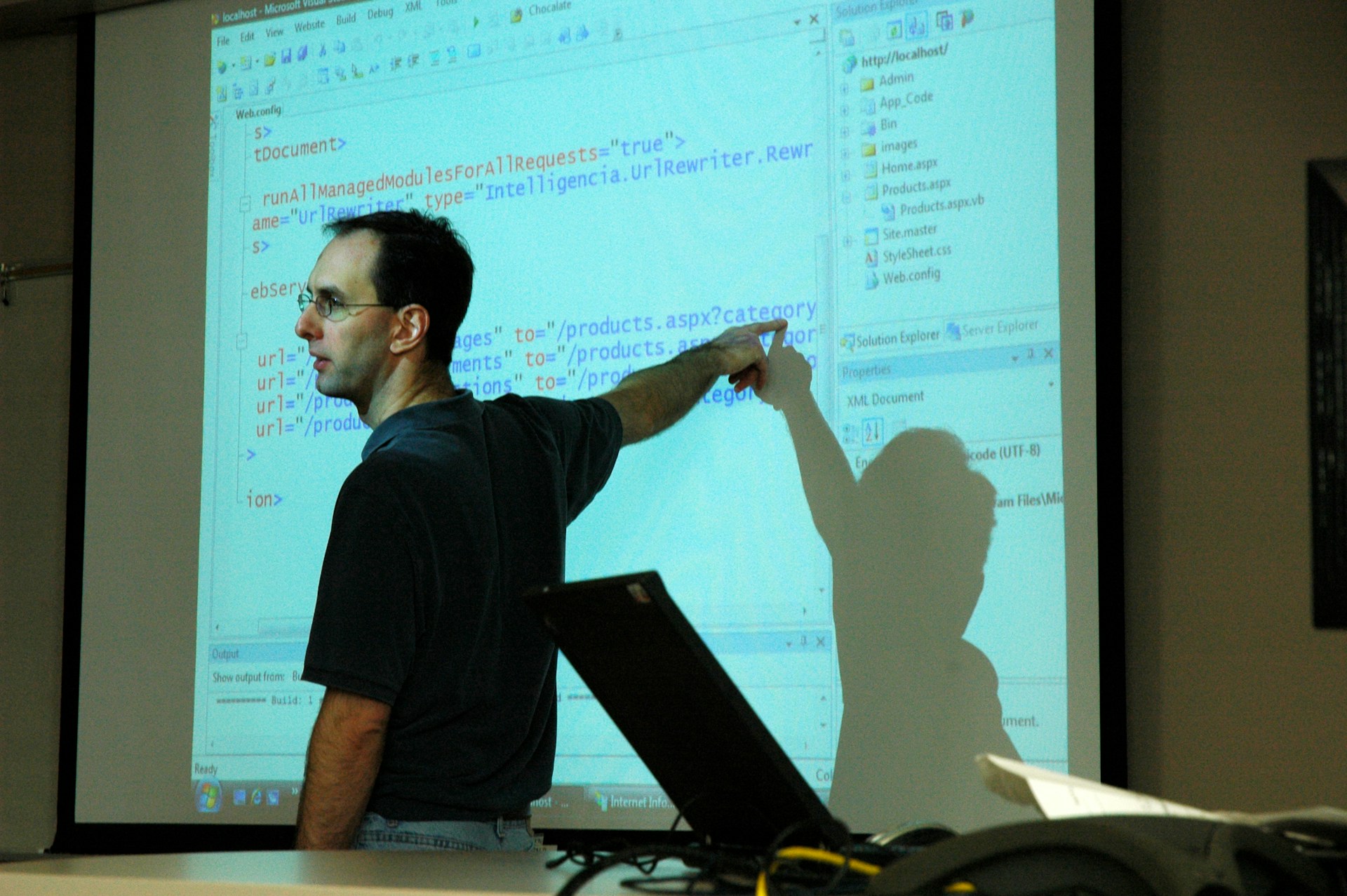

Migrating a WordPress website can be a stressful process, especially when everything seems to go smoothly except for one frustrating issue: WordPress URL resolution error.
These errors often appear as broken links, “404 Not Found” pages, or incorrect redirections after the migration, leaving your visitors and search engines confused. Fortunately, these problems are common and fixable with the right approach.
In this guide, we’ll explain why URL resolution errors happen after a WordPress migration, how to identify them, and step-by-step methods to fix them effectively.
Remember: We can help 🙂
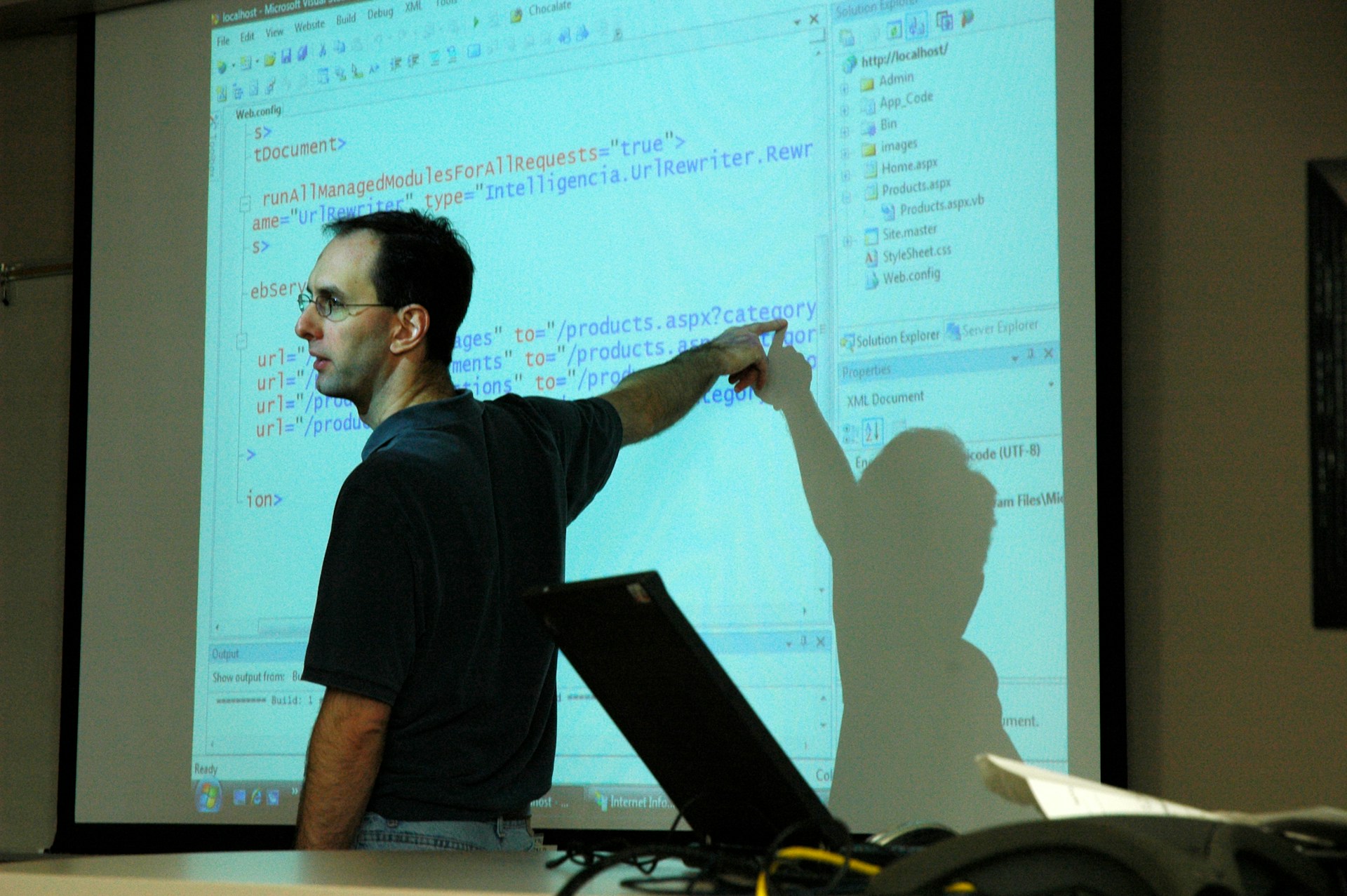
At WadiPurple, we specialize in resolving URL resolution errors and ensuring your WordPress migration is smooth and error-free. Our team takes a hands-on approach, identifying the root causes of broken links and outdated URLs, then implementing precise fixes so your site functions flawlessly on the new domain.
Our approach includes:
- Comprehensive site audit to detect all broken links and URL issues
- Updating WordPress Address (URL) and Site Address (URL) settings
- Safe search-and-replace in the database, handling serialized data correctly
- Reviewing and fixing hardcoded links in themes, plugins, and widgets
- Permalink refresh and cache/CDN clearing for immediate results
- Post-fix testing to ensure all pages, images, and resources load correctly
With WadiPurple, you get expert guidance and hands-on support to fix URL errors quickly and prevent them from happening again. Contact us today to restore your website’s functionality and provide a seamless experience for your users.
Why URL Resolution Errors Happen After Migration
URL resolution errors typically occur because WordPress relies heavily on database references for links, images, and resources. When a site is moved from one domain, server, or directory to another, many of these references may still point to the old location. Common causes include:
-
Incorrect Site URL or Home URL
WordPress stores your site URL in the database. If these aren’t updated after migration, links will still point to the old domain. -
Hardcoded Links in Content or Themes
Some links, images, and scripts may be directly written into posts, pages, or theme files. -
Permalink Issues
Migration can sometimes reset or corrupt permalink settings, causing pages to become inaccessible. -
Cache and CDN Conflicts
Cached content or CDN configurations may continue serving old URLs. -
Database Serialization Problems
Some plugins and themes store URLs in a serialized format, and a simple find-and-replace in the database can break them if done incorrectly.
How to Identify URL Resolution Errors?
To identify URL resolution errors after a WordPress migration, start by thoroughly browsing your site to spot broken links, missing images, or pages that return “404 Not Found” errors.
Use online tools like Broken Link Checker or Screaming Frog to scan your entire website for invalid URLs automatically. Check your WordPress settings under Settings → General to ensure the WordPress Address (URL) and Site Address (URL) match your new domain.
Before fixing the issue, you need to pinpoint where URLs are broken. Some practical steps include:
-
Browse Your Site
Navigate through pages, posts, images, and menus to spot broken links. -
Use Online Tools
Tools like Broken Link Checker or Screaming Frog can scan your site for 404 errors. -
Check WordPress Settings
Go to Settings → General and confirm that the WordPress Address (URL) and Site Address (URL) match your new domain. -
Inspect Database References
Use tools like phpMyAdmin or WP-CLI to search the database for old URLs, especially in thewp_posts,wp_postmeta, andwp_optionstables.
Additionally, inspect your database—especially the wp_posts, wp_postmeta, and wp_options tables—for old URLs that may still be referenced. Identifying these errors early is crucial for a complete and accurate fix.
Step-by-Step Fix for URL Resolution Errors
These errors usually occur because links, images, or scripts still reference the old domain, causing broken pages and 404 errors.
By following a step-by-step process—including updating site URLs, refreshing permalinks, replacing old database references, checking for hardcoded links, and clearing caches—you can quickly restore your site’s functionality, ensure all URLs resolve correctly, and provide a seamless experience for both users and search engines.
Update Site URL and Home URL
- Go to Settings → General in your WordPress dashboard.
- Ensure both the WordPress Address (URL) and Site Address (URL) reflect your new domain.
- Save changes and refresh your site.
If you cannot access the admin panel, add the following lines to wp-config.php:
Fix Permalinks
- Navigate to Settings → Permalinks.
- Re-save your permalink structure without making changes.
- This refreshes WordPress’s rewrite rules and resolves many 404 errors.
Update Old URLs in Database
Use a safe search-and-replace tool for serialized data to avoid breaking links:
- Plugins like Better Search Replace or WP Migrate DB are ideal.
- Replace all instances of the old domain with the new domain in posts, pages, and meta fields.
Check for Hardcoded Links
Some themes, plugins, or widgets may still use the old URLs. To fix this:
- Inspect your theme files (
header.php,footer.php, etc.) for hardcoded links. - Update links in custom CSS, JavaScript, or widgets.
Clear Cache and CDN
- Clear any caching plugin caches (e.g., WP Rocket, W3 Total Cache).
- Purge CDN caches if you use Cloudflare, KeyCDN, or similar.
- Refresh your browser cache to see changes.
Test and Validate
After making all updates:
- Test your site on multiple devices and browsers.
- Use a broken link checker again to ensure no old URLs remain.
- Check Google Search Console for any crawl errors caused by broken links.
Bonus Tips to Avoid Future URL Issues
To avoid URL resolution issues in future WordPress migrations, it’s important to plan and implement best practices from the start. Always back up your website files and database before making changes, and consider using reliable migration plugins like All-in-One WP Migration or Duplicator, which handle URL updates automatically.
Test your site thoroughly in a staging environment before going live, and keep a checklist of hardcoded URLs in themes, plugins, and widgets to update if needed. Regularly monitoring your site for broken links and maintaining proper permalink structures also helps prevent future errors and ensures a smooth user experience.
Final Thoughts
URL resolution errors after WordPress migration are common but completely solvable. Most issues stem from outdated database references, permalinks, or cached content. By carefully updating your site URL, fixing permalinks, replacing old URLs in the database, and clearing caches, you can restore a fully functional website.
- WordPress Development: Custom Websites for Businesses
- [Fixed] WordPress 404 Error Not Found on LiteSpeed
Taking a structured approach not only fixes current errors but also prevents future problems, ensuring that your site’s SEO, user experience, and functionality remain intact. If you need professional help, WadiPurple can assist with WordPress migrations and troubleshooting, ensuring a smooth transition without broken links or lost traffic.